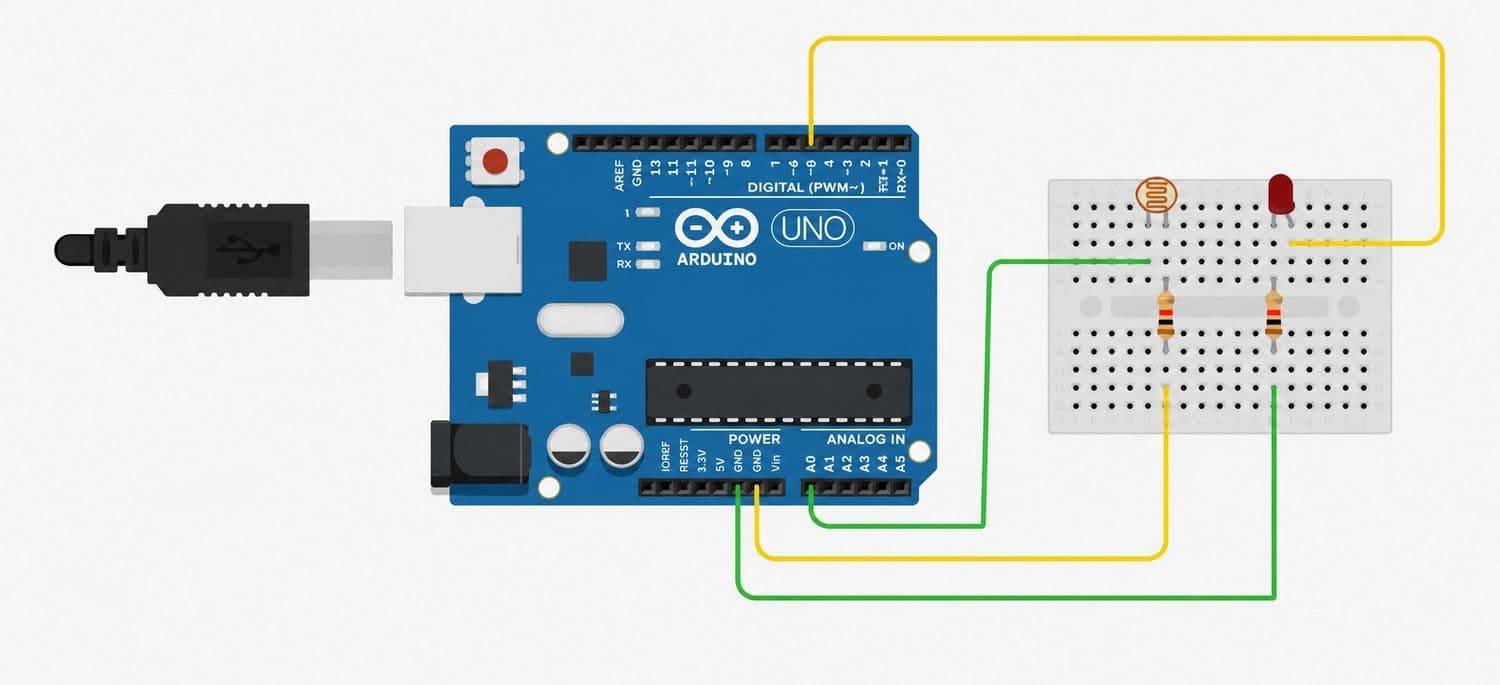
The Automatic Street Light Using LDR project introduces one of the most widely used applications of sensors in embedded systems: Automatic Light Detection.
In this project, an LDR (Light Dependent Resistor) continuously measures the surrounding light intensity. The Arduino reads the sensor value through an analog input and automatically controls an LED based on the ambient light level.
When the environment becomes dark, the Arduino turns the LED ON to simulate a street light. As soon as sufficient light is detected, the LED automatically turns OFF, conserving energy.
This project introduces:
Light Dependent Resistor (LDR)
Analog Input Reading
Voltage Divider Circuit
Conditional Statements (if-else)
Automatic Light Control
By completing this project, you'll understand how sensors interact with microcontrollers to automate real-world systems such as street lights, garden lights, and smart home lighting.
Connect the Arduino GND pin to the negative rail of the breadboard.
This creates a common ground connection for the entire circuit.
Step 2: Connect the LED
Insert the LED into the breadboard.
Connect:
Long Leg (Anode) → Arduino Pin 7 through a 220Ω resistor
Short Leg (Cathode) → Breadboard GND rail
Step 3: Connect the LDR
Insert the LDR into the breadboard.
Connect:
One leg of the LDR → Arduino 5V
Other leg of the LDR → Arduino A0
Step 4: Connect the 10kΩ Resistor
Create a voltage divider by connecting:
One end of the 10kΩ resistor → Arduino A0
Other end → Breadboard GND rail
Step 5: Verify Connections
Double-check all wiring before powering the circuit.
Ensure the LED polarity is correct and verify that the LDR and resistor form a proper voltage divider.
Important: The LDR and 10kΩ resistor work together as a voltage divider. This allows Arduino to measure changing light levels through the analog input pin.
How the Arduino Code Works
Read Light Intensity
Arduino continuously reads the voltage from the LDR using the analogRead() function on A0.
The measured value ranges from 0 to 1023, depending on the surrounding light intensity.
Compare with Threshold
The measured value is compared with a predefined threshold.
If the light level falls below the threshold, Arduino recognizes that the environment is dark.
Control the LED
When darkness is detected, Arduino turns the LED ON.
When sufficient light is available, Arduino turns the LED OFF.
Continuous Monitoring
The entire process repeats continuously inside the loop() function, allowing the system to respond instantly to changes in ambient light.
Expected Output
After uploading the code:
In bright light, the LED remains OFF.
Covering the LDR or reducing the surrounding light turns the LED ON.
Removing the cover or increasing the light turns the LED OFF again.
The process repeats automatically without any user interaction.
Operational Troubleshooting
LED Does Not Turn ON: Check the LED polarity, resistor connections, and verify that the threshold value matches your lighting conditions.
LED Always Stays ON or OFF: Adjust the threshold value in the code after observing the readings in the Serial Monitor.
LDR Values Do Not Change: Verify that the LDR and 10kΩ resistor are connected correctly as a voltage divider.
Upload Errors: Ensure the correct Arduino board and COM port are selected in the Arduino IDE.
What You Learned
By completing this project, you have learned:
How an LDR sensor works
How to read analog sensor values
How voltage divider circuits operate
How to use analogRead()
How to build an automatic lighting system using Arduino
Next Lesson
In Day 8, you'll learn how to use a Buzzer with Arduino to generate different sounds and simple melodies using digital outputs.