Day 6: Day 6:- Traffic Light System | 60-Day Arduino Course
Day 6 Core Training Documentation
The Traffic Light System project introduces one of the most common real-world applications of embedded systems and automation.
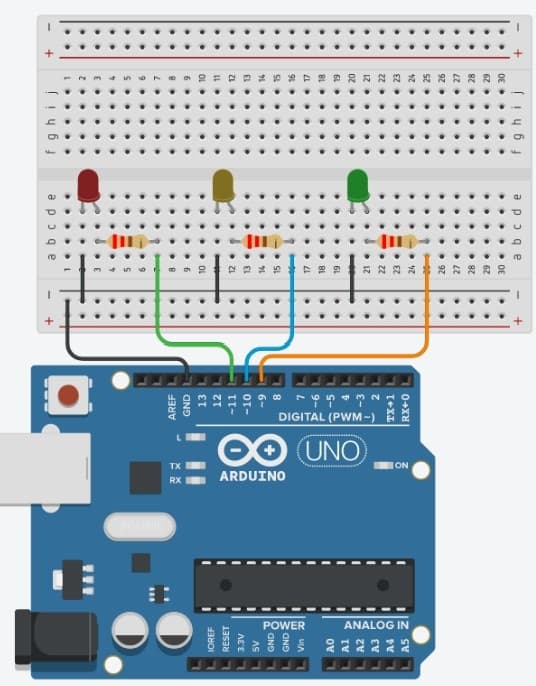
In this project, Arduino controls three LEDs that simulate a real traffic signal:
Red LED – StopYellow LED – WaitGreen LED – Go
Using digital outputs and timing logic, Arduino automatically switches between different traffic light states, creating a realistic traffic signal sequence.
This project introduces:
Multiple Output Control Timing and Delays Sequential Programming Automation Systems Real-World Traffic Signal Logic
By completing this project, you'll understand how microcontrollers can automate tasks and control multiple devices in a specific sequence.
Step 1: Connect Ground Rail Connect the Arduino GND pin to the negative rail of the breadboard.
This creates a common ground connection for all LEDs.
Step 2: Connect the Red LED Insert the Red LED into the breadboard.
Long Leg (Anode) → Arduino Pin 8 through a 220Ω resistor
Short Leg (Cathode) → Breadboard GND rail
Step 3: Connect the Yellow LED Insert the Yellow LED into the breadboard.
Long Leg (Anode) → Arduino Pin 9 through a 220Ω resistor
Short Leg (Cathode) → Breadboard GND rail
Step 4: Connect the Green LED Insert the Green LED into the breadboard.
Long Leg (Anode) → Arduino Pin 10 through a 220Ω resistor
Short Leg (Cathode) → Breadboard GND rail
Step 5: Verify Connections Double-check all LED polarities and resistor placements before powering the circuit.
Important: Every LED must have its own 220Ω current-limiting resistor to prevent damage.
Configure Output Pins Inside setup(), Arduino configures Pin 8, Pin 9, and Pin 10 as output pins.
These pins control the Red, Yellow, and Green LEDs.
Stop State The Red LED turns ON while the Yellow and Green LEDs remain OFF.
This represents the STOP signal.
Ready State The Red and Yellow LEDs turn ON together.
This indicates that the signal is about to change.
Go State The Green LED turns ON while the Red and Yellow LEDs turn OFF.
This represents the GO signal.
Warning State The Yellow LED turns ON while the Red and Green LEDs remain OFF.
This warns that the signal is about to switch back to Red.
Repeat the Cycle The sequence continuously repeats inside the loop() function, creating a complete traffic light system.
After uploading the code:
Red LED turns ON for 5 seconds.
Red and Yellow LEDs turn ON together for 2 seconds.
Green LED turns ON for 5 seconds.
Yellow LED turns ON for 2 seconds.
The sequence repeats continuously.
The circuit behaves like a simplified traffic signal.
One LED Does Not Turn ON: Verify the LED polarity and check the resistor connection.
Incorrect Sequence: Ensure each LED is connected to the correct Arduino pin.
All LEDs Stay ON: Check the uploaded code and confirm the pin numbers match your wiring.
Upload Errors: Verify the correct board and COM port are selected in Arduino IDE.
By completing this project, you have learned:
How to control multiple LEDs simultaneously
How timing logic works using delay()
How automation systems operate
How to create sequential output patterns
How real-world traffic lights are controlled
In Day 7 , you'll learn how to use a Buzzer with Arduino to generate sounds and simple melodies.
Breadboard