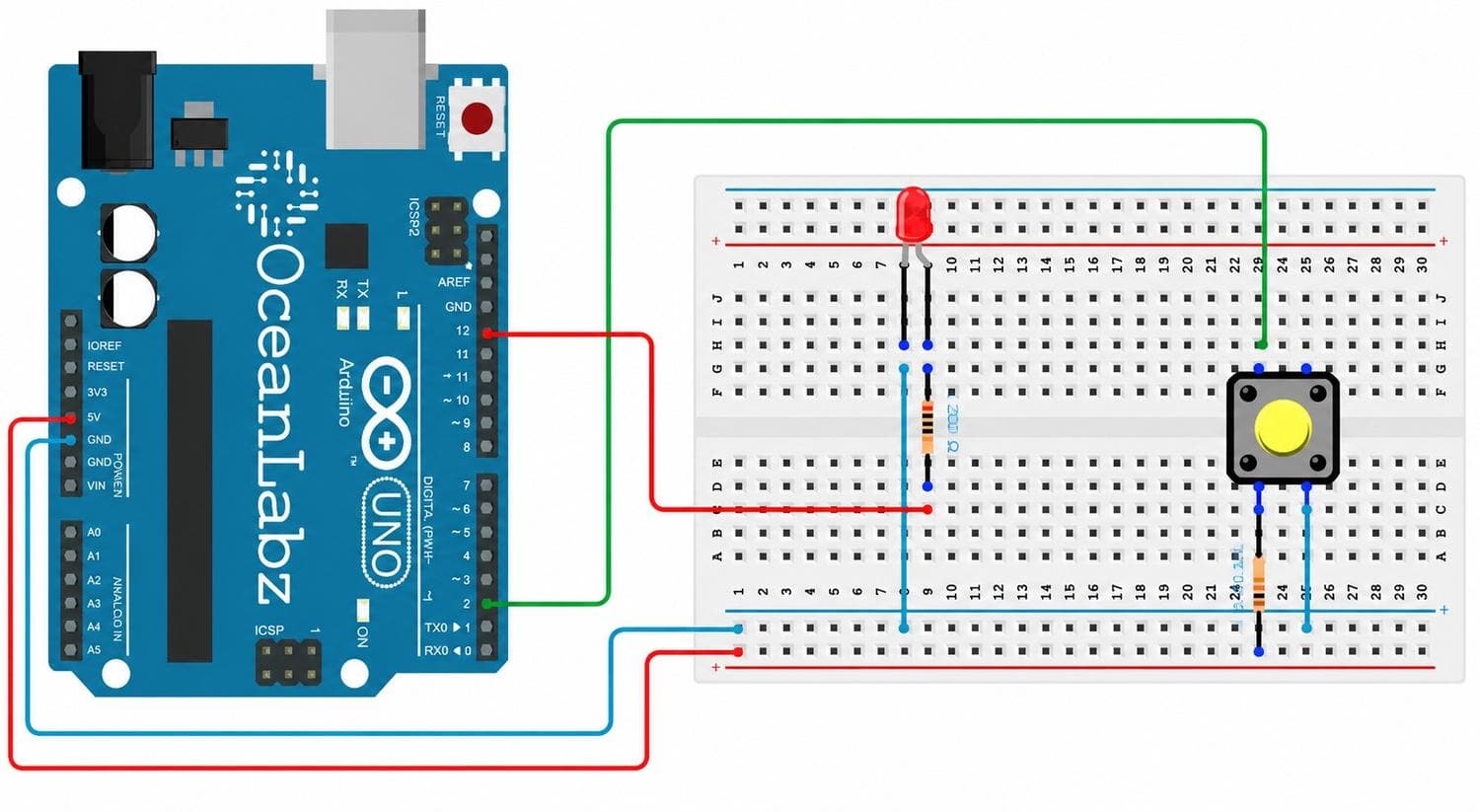
The Button Toggle LED project introduces one of the most important programming concepts in embedded systems: State Memory.
Unlike the previous lesson where the LED only remained ON while the button was being pressed, this project allows Arduino to remember the LED's current state.
A single button press turns the LED ON. Pressing the same button again turns the LED OFF.
This project introduces:
State Management: Storing and recalling previous states.
Connect an Arduino GND pin to the negative rail (-) of the breadboard.
This creates a common electrical reference for the circuit.
Step 2: Connect the LED
Insert the LED into the breadboard.
Connect the long leg Anode (+) to Arduino digital Pin 13 through a 220Ω resistor.
Connect the short leg Cathode (-) to the negative rail.
Step 3: Connect the Push Button
Place the push button across the center gap of the breadboard.
Connect one side of the button to Arduino digital Pin 2.
Connect the opposite side directly to the ground rail.
Arduino will use its internal pull-up resistor to monitor button presses.
Step 4: Verify Connections
Confirm LED connection to Pin 13.
Confirm push button connection to Pin 2.
Verify all ground connections.
Pro Tip: If the LED changes state multiple times from a single press, add a short debounce delay inside the code.
How the Arduino Code Works
Configure the Hardware
Inside setup():
Pin 13 is configured as an OUTPUT.
Pin 2 is configured using INPUT_PULLUP.
This allows Arduino to safely read button states while controlling the LED.
Detect a Button Press
Arduino continuously checks the state of the push button using digitalRead().
When a button press is detected, the program triggers a state change.
Store the LED State
A variable is used to remember whether the LED is currently ON or OFF.
Each button press flips the stored value.
Example:
OFF → ON
ON → OFF
Toggle the LED
Based on the stored state:
LED State = ON → Pin 13 becomes HIGH
LED State = OFF → Pin 13 becomes LOW
This creates the ON/OFF switch behavior.
Expected Output
After uploading the code:
Press the button once → LED turns ON.
Release the button → LED remains ON.
Press the button again → LED turns OFF.
Release the button → LED remains OFF.
The cycle continues with every button press.
Operational Troubleshooting
LED Does Not Toggle: Verify that the push button is connected to Pin 2 and GND. Incorrect button placement is the most common issue.
LED Toggles Multiple Times: This usually occurs because of switch bounce. Add a debounce delay or use button state tracking logic.
LED Never Turns OFF: Check your toggle variable and ensure its value changes after every button press.
Upload Errors: Verify the selected board, COM port, and USB cable connection inside Arduino IDE.
What You Learned
By completing this project, you have learned:
How to create a real ON/OFF switch using Arduino.
How state variables store information.
How Arduino remembers previous events.
How to implement toggle logic.
The foundation of interactive embedded systems.
Next Lesson
In Day 4, you'll learn how to control LED brightness using PWM (Pulse Width Modulation), allowing Arduino to create smooth fading effects instead of simple ON and OFF states.